The Basicloud admin is where a connected system becomes a portal. Everything in it is visual — no code, no deploys — and it’s grouped the way you’d set a portal up: who can get in, what data they see, how it looks, and how it’s used.
Users and access
Users. Invite customers, partners, contractors, and employees, and give each one a role. Portal users sign in to Basicloud — they never need a license in your Salesforce org.
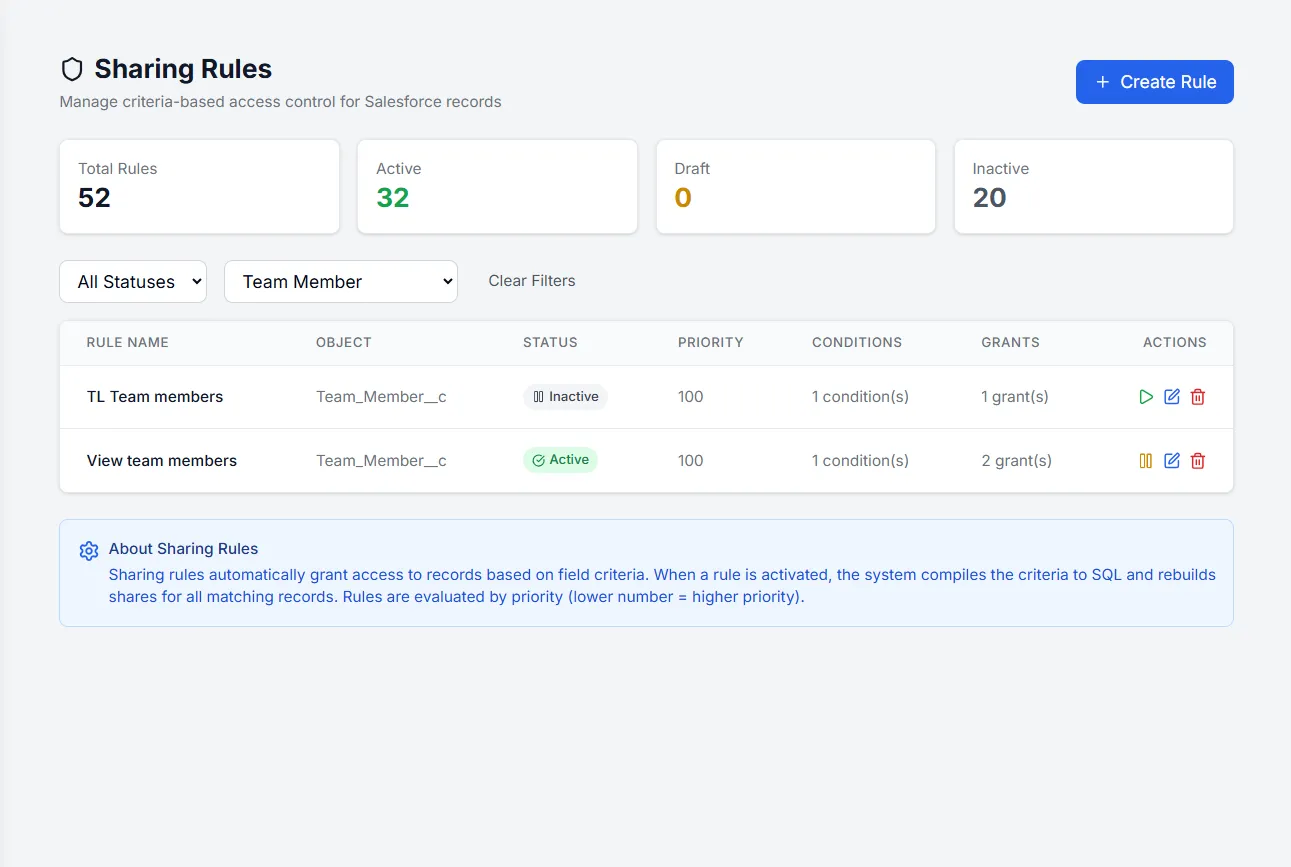
Sharing rules. Decide who sees which records with criteria-based rules: pick an object, set the conditions, choose who gets access and at what level (read only, edit, or full). Rules are compiled into every query, so out-of-scope records are never fetched.
Account sharing. Give the people at a customer or partner account access to that account’s records, without writing a rule for each person.
Connected data
Connection. Connect your Salesforce org over OAuth 2.0. Basicloud works with any object, standard or custom — all it needs is API access.
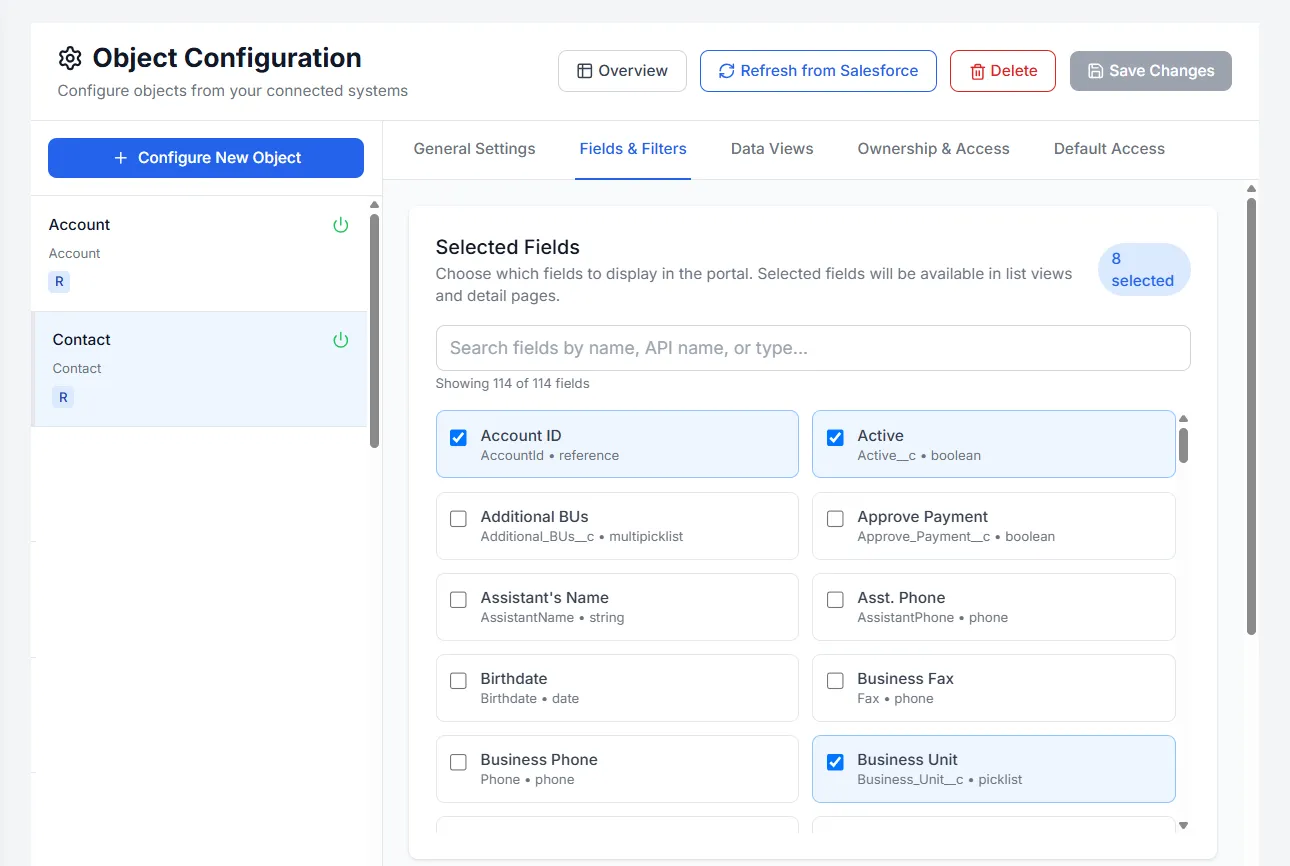
Configured objects. Choose which objects the portal uses, and which of their fields to show, filter, and search on.
Page layouts. Drag fields into sections to design each record page, and preview it as a specific type of user before you publish.
Config transfer. Move a portal’s configuration from one environment to another — for example, from a sandbox to production — instead of rebuilding it by hand.
Branding
Theme. Your logo, portal name, tagline, and brand color, with a live preview of the portal header before you save.
Welcome page, home page, and navigation. Design the first page users land on, their home page, and the menu that takes them everywhere else.
Custom CSS. Go beyond colors and logo when you need the portal to match your brand exactly.
Custom domain. Serve the portal from your own address, such as portal.yourbrand.com, verified with a DNS record.
Translations. Offer the portal in more than one language; users choose theirs on the sign-in page.
Settings
Email settings. Control the emails the portal sends to your users.
AI settings. Configure the AI features available in your portal.
Custom components. Add components built for your workflow to portal pages, for the cases the standard list, kanban, and calendar views don’t cover.
Monitoring and support
Dashboard and usage analytics. See how the portal is used — who signs in and what they open.
Activity logs. A record of sensitive actions — who did what, and when — for audits and troubleshooting.
Help center and feature requests. Point users to help content, and collect their requests in one place.
What portal users get
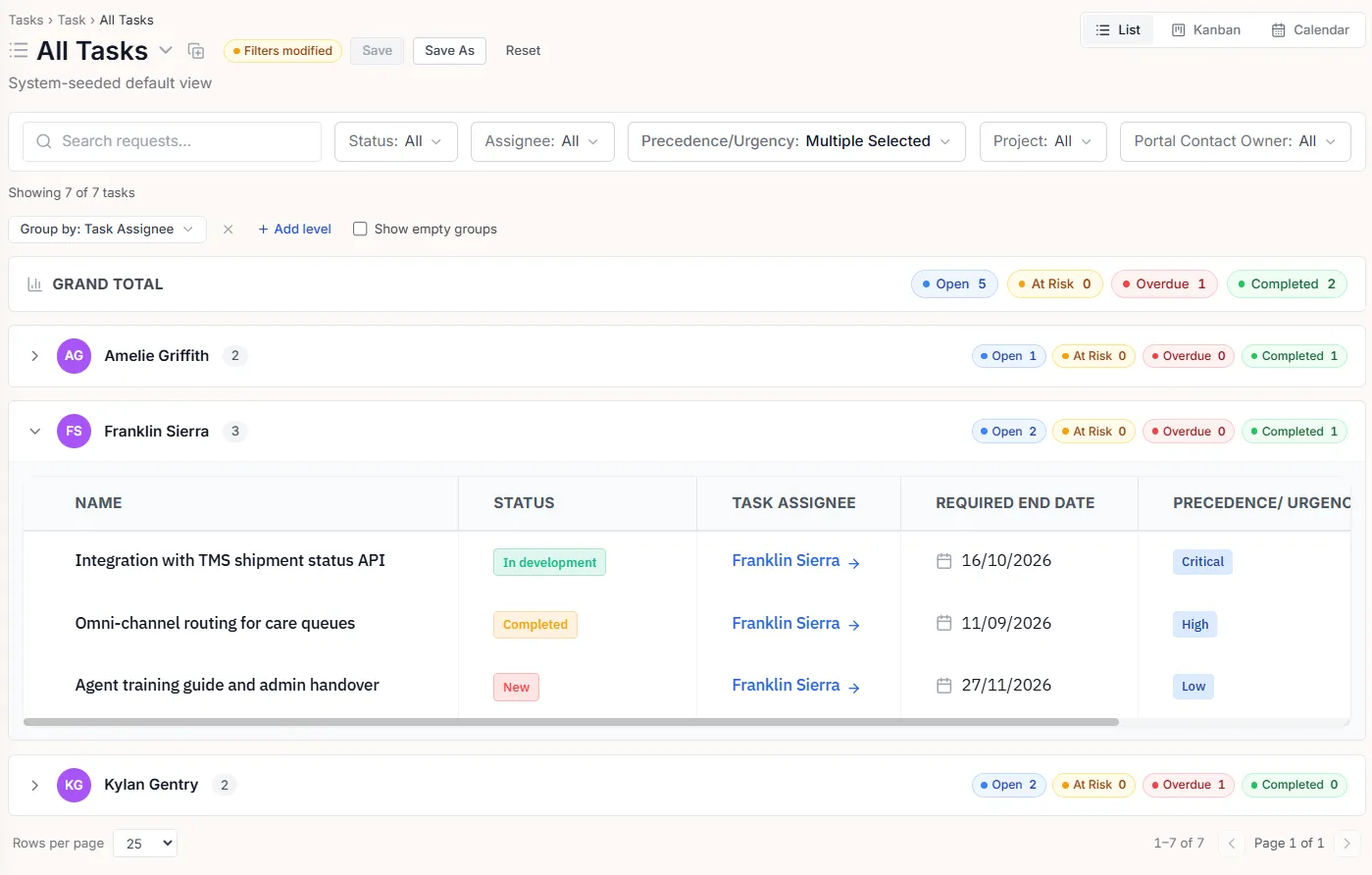
On the portal side, users work with the same live records through list, kanban, and calendar views. They filter, group, and save their own views, and open any record in a side panel to edit it in place — with every change written straight back to your system.